
Admin UI
Faucet ships with a web console built into the binary. It needs no separate install and no internet access; the fonts and icons are bundled. Start the server and open http://localhost:8080.
faucet serveThe admin UI is on by default. Turn it off with faucet serve --no-ui. Older links to /admin still work and redirect to the console.
Everything the console does goes through the same REST API you can script against, so anything you set up here can be automated later.
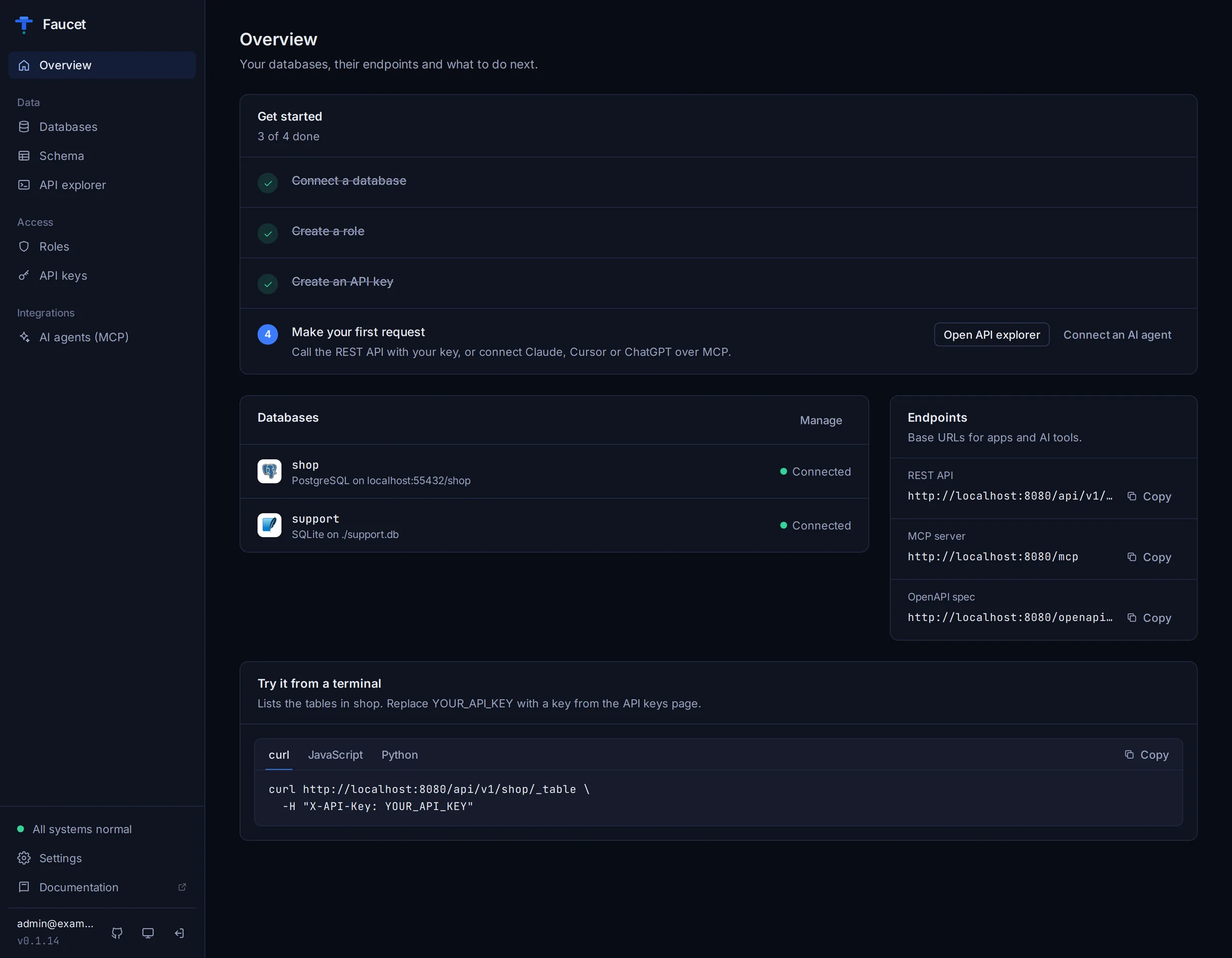
First-run setup
The first time you open Faucet, it walks you through three steps.
1. Create your admin account. Enter an email address and a password of at least 8 characters. You'll use them to sign in to the console. (Prefer the terminal? faucet admin create --email [email protected] does the same.)
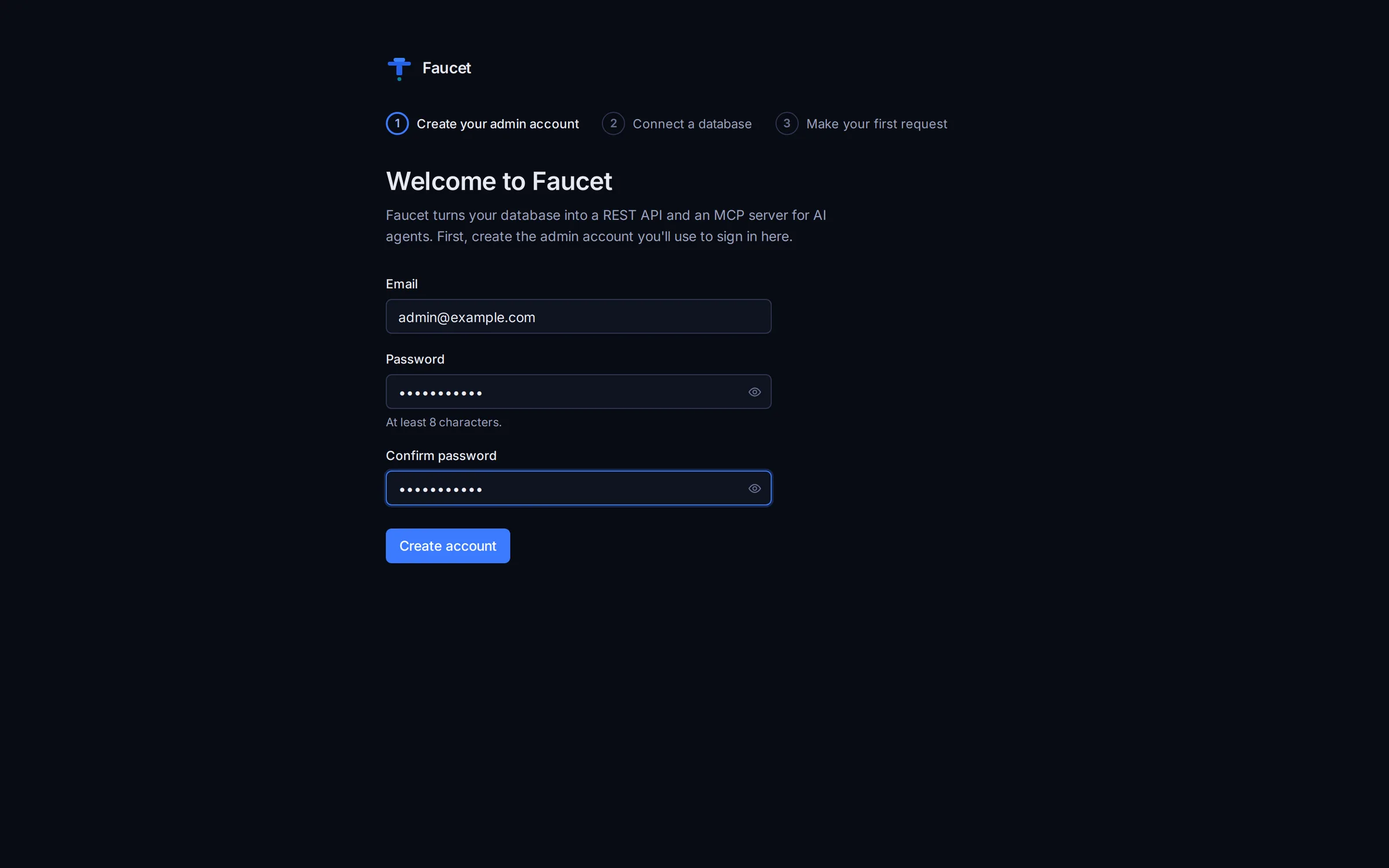
2. Connect a database. This is the same form as Connect a database below. Fill in the details, click Test connection, then Add database. You can also Skip for now and add databases later.
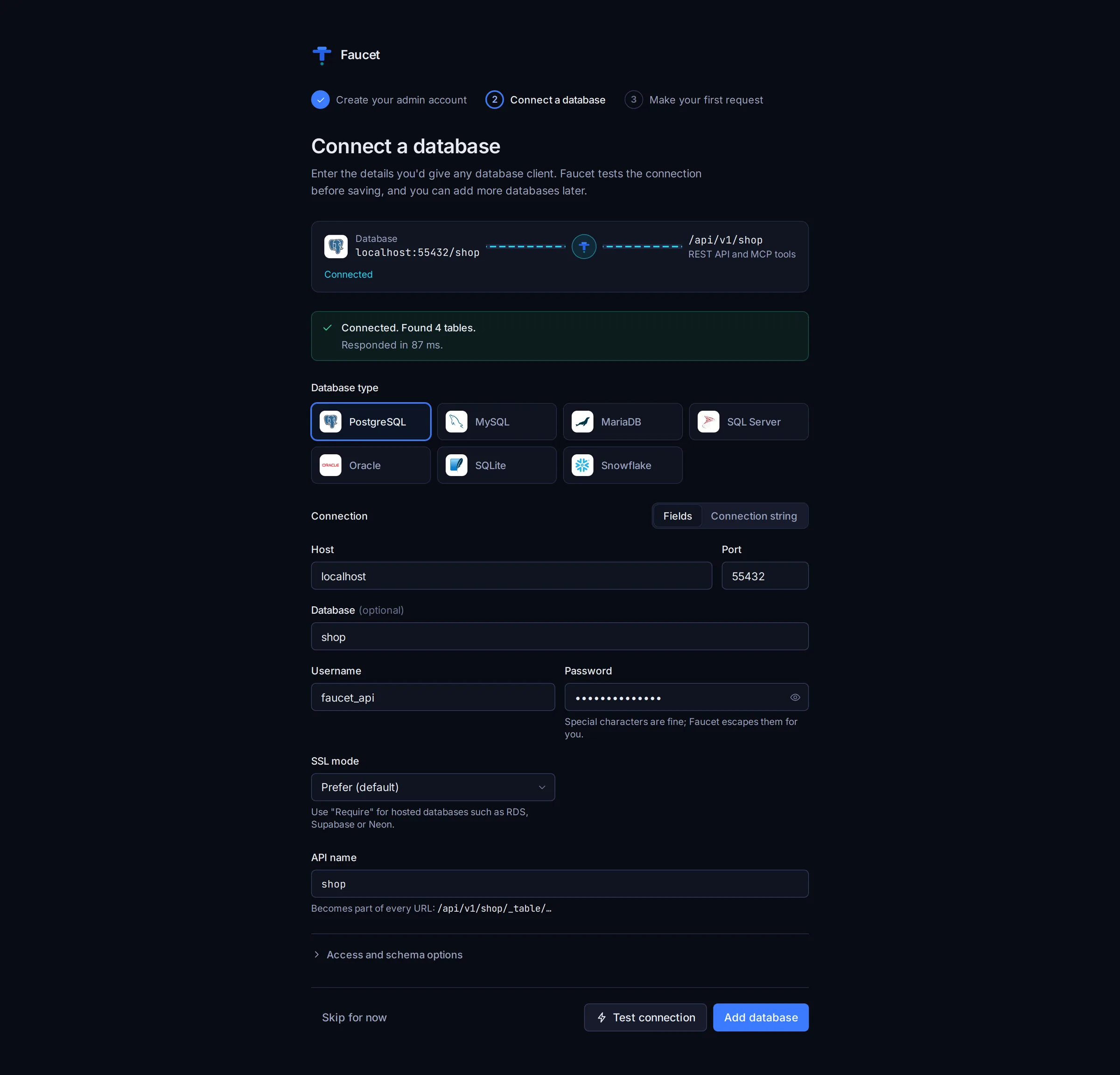
3. Pick where to go next. Your database's REST API is live as soon as you save. From here you can browse its tables, create an API key, or connect an AI agent.
Overview
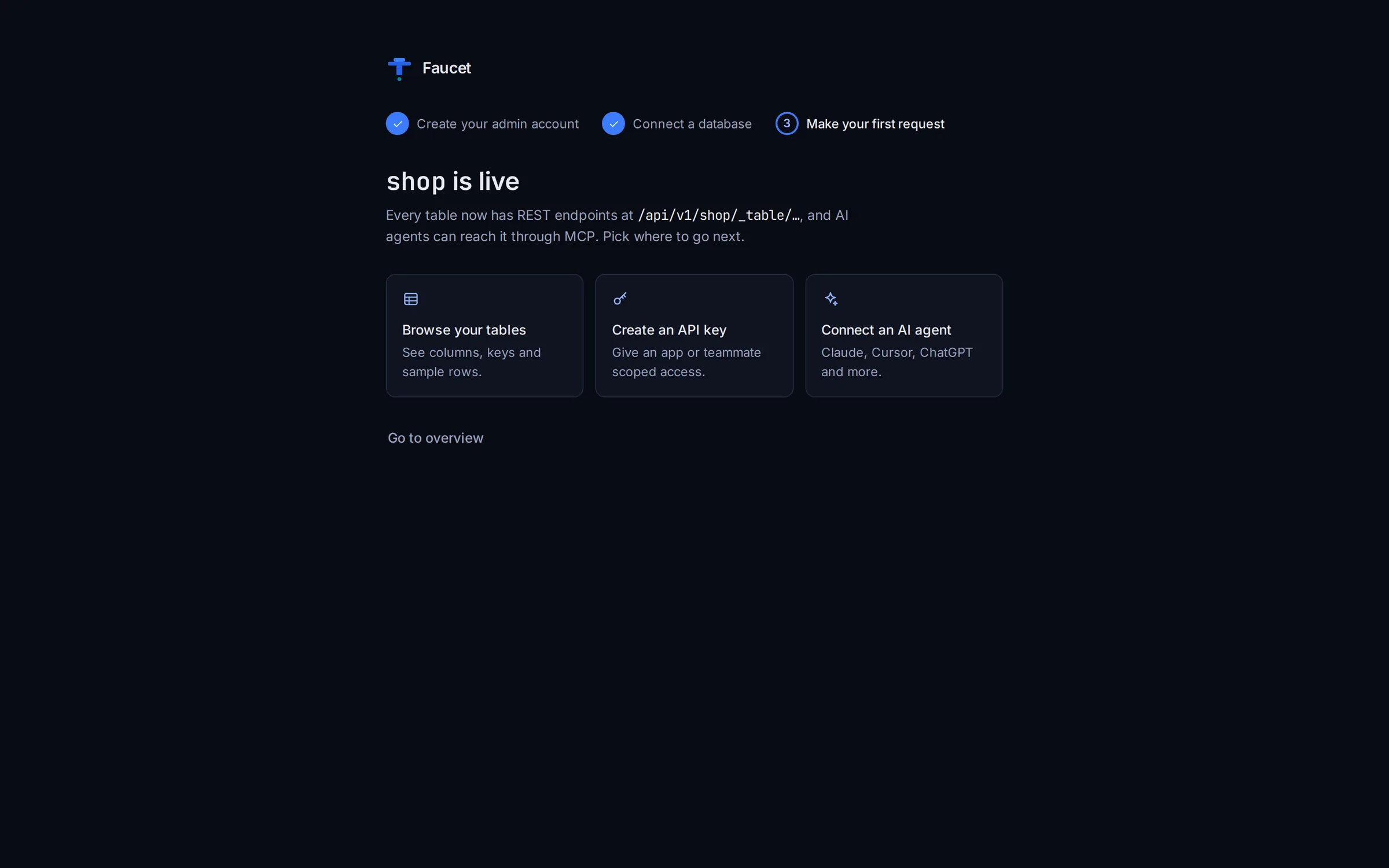
The Overview page is your home base.
- Get started shows the four steps to a working API and checks them off as you go: connect a database, create a role, create an API key, and make your first request with that key. It disappears once everything is done.
- Databases lists each connected database and whether Faucet can reach it right now.
- Endpoints gives the base URLs to copy: the REST API, the MCP server for AI agents, and the OpenAPI spec.
- Try it from a terminal has a ready-to-run request in curl, JavaScript and Python.
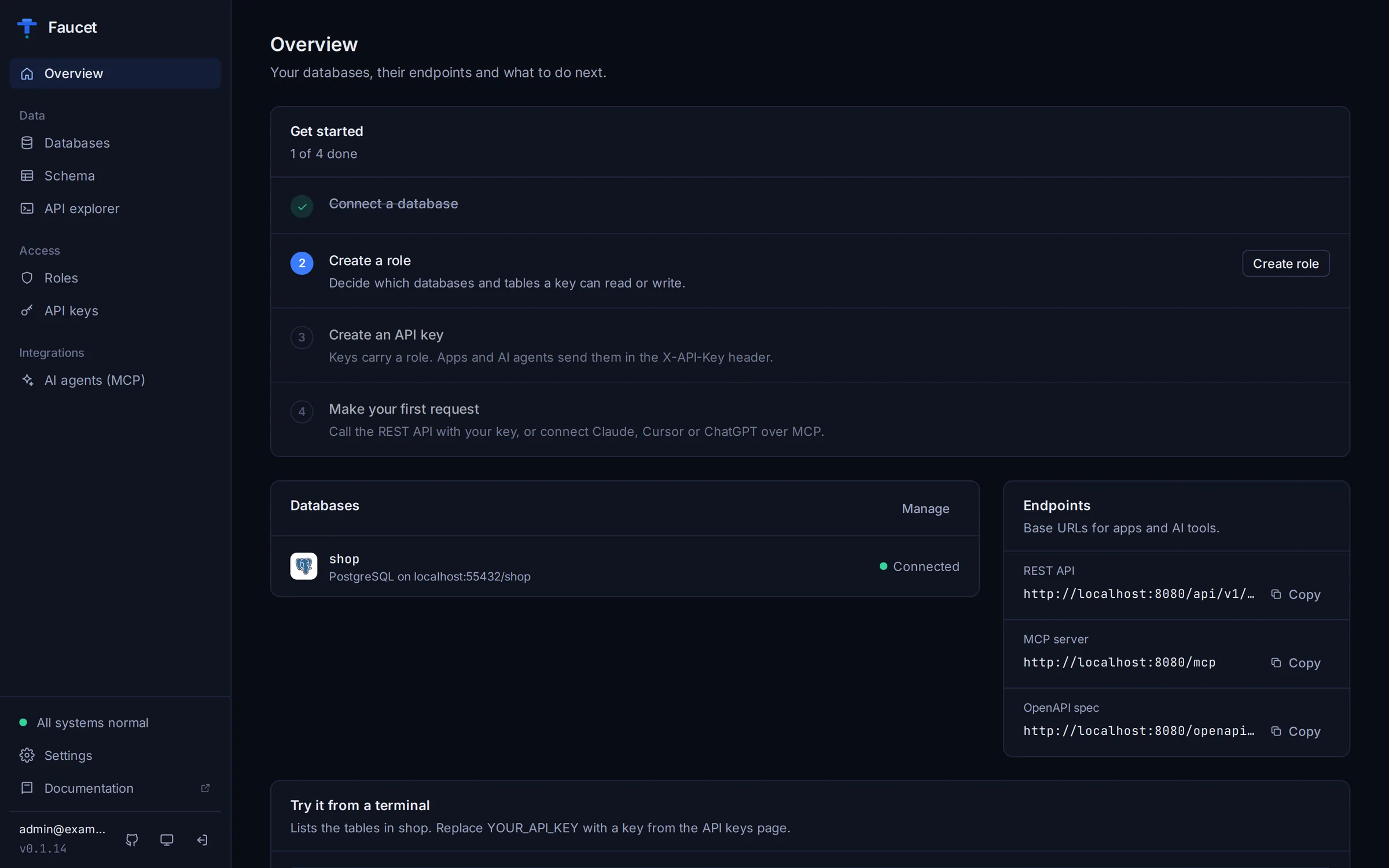
The status line at the bottom of the sidebar reads "All systems normal" when every database answers. If one doesn't, it names the unreachable database. Faucet checks every 30 seconds.
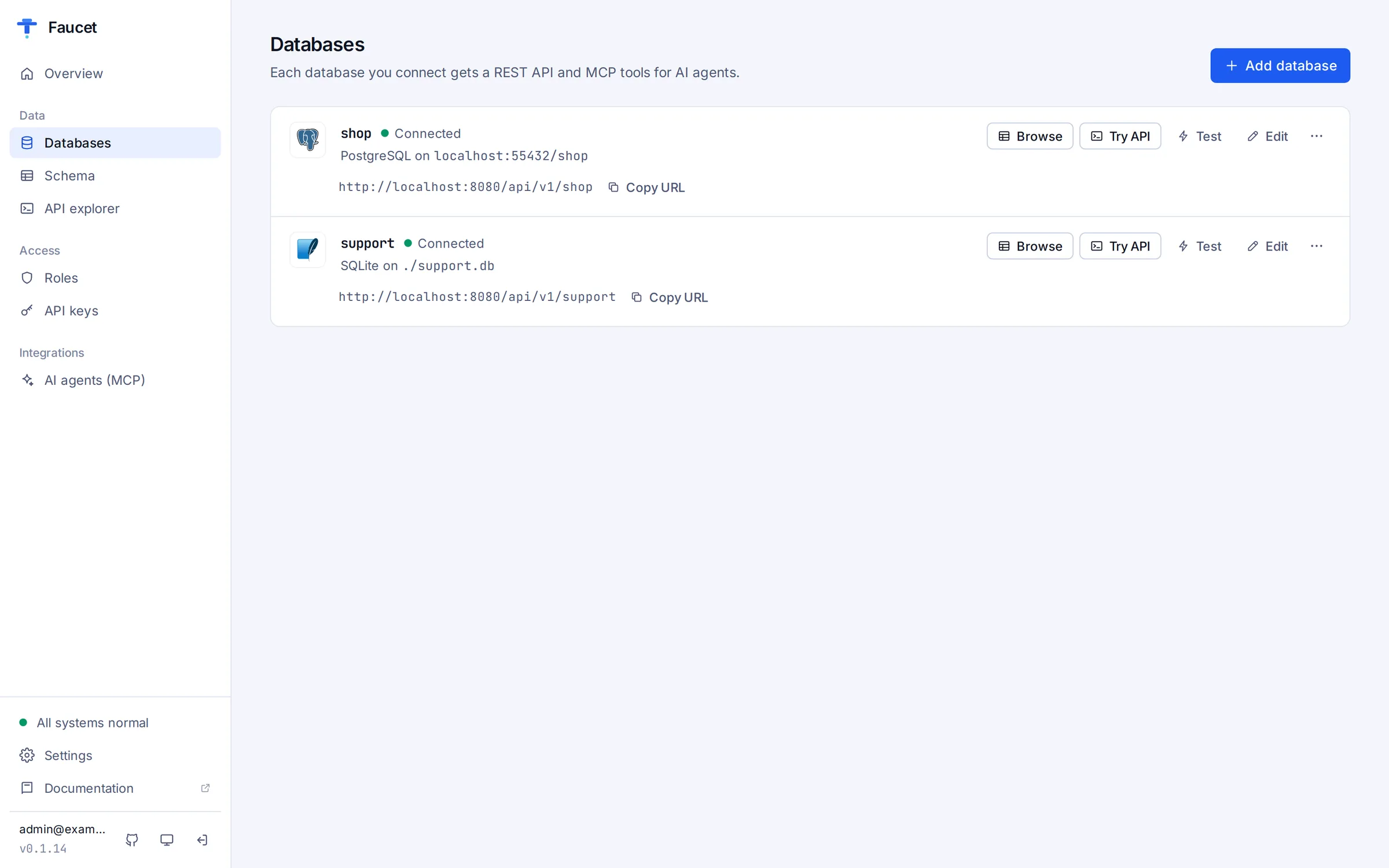
Databases
Databases lists everything you've connected. Each row shows the engine, where the database lives, whether it's connected, any read-only or raw SQL settings, and its API URL with a copy button.
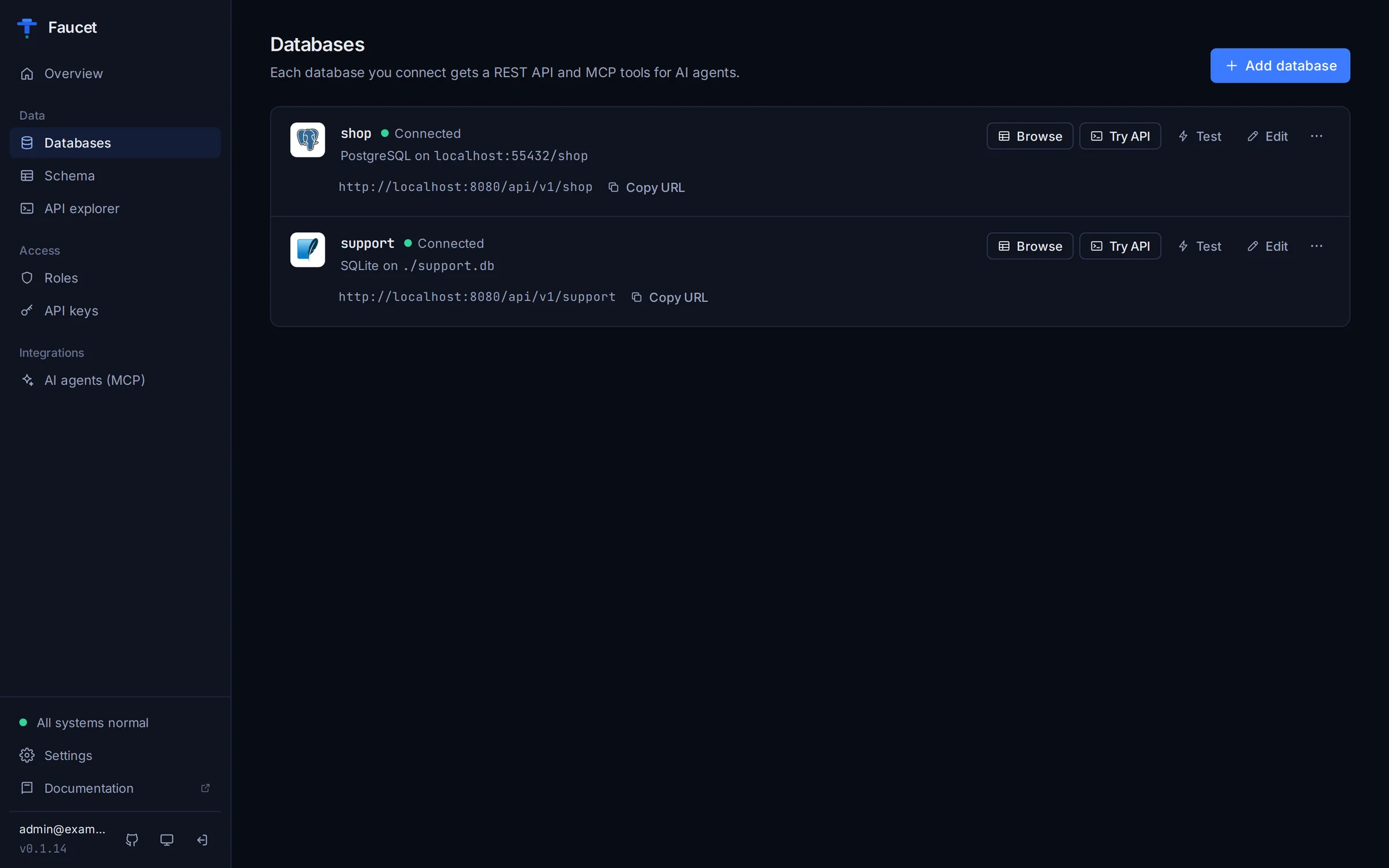
Row actions:
| Action | What it does |
|---|---|
| Browse | Opens the database on the Schema page |
| Try API | Opens the API explorer with this database selected |
| Test | Checks that Faucet can still reach the database, and reconnects it if needed |
| Edit | Changes connection details and access options (see below) |
| ⋯ → Pause API / Resume API | Takes the database's REST API and MCP tools offline without deleting anything |
| ⋯ → Remove | Deletes the database from Faucet. The database itself is not touched |
Connect a database
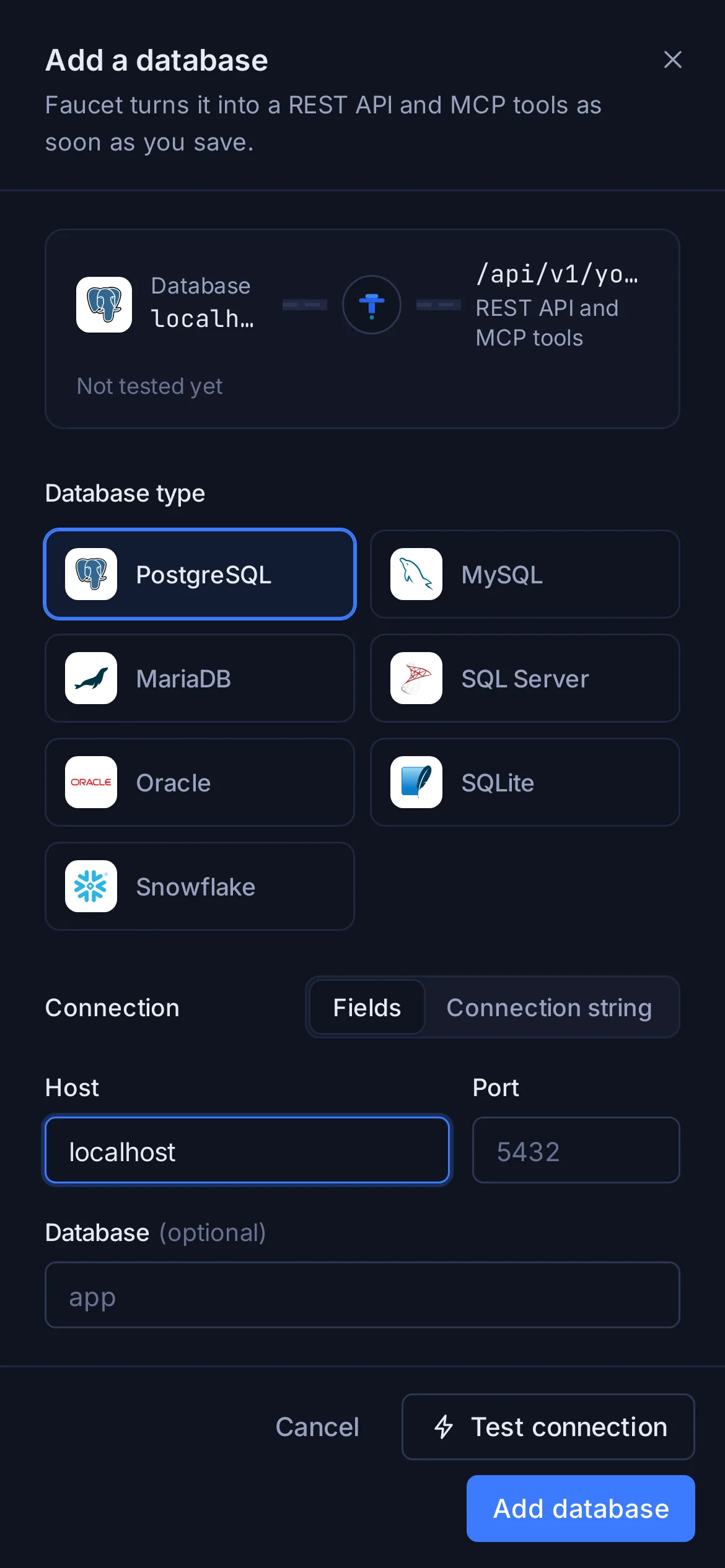
Click Add database. A panel opens with three parts: the database type, the connection details, and the API name.
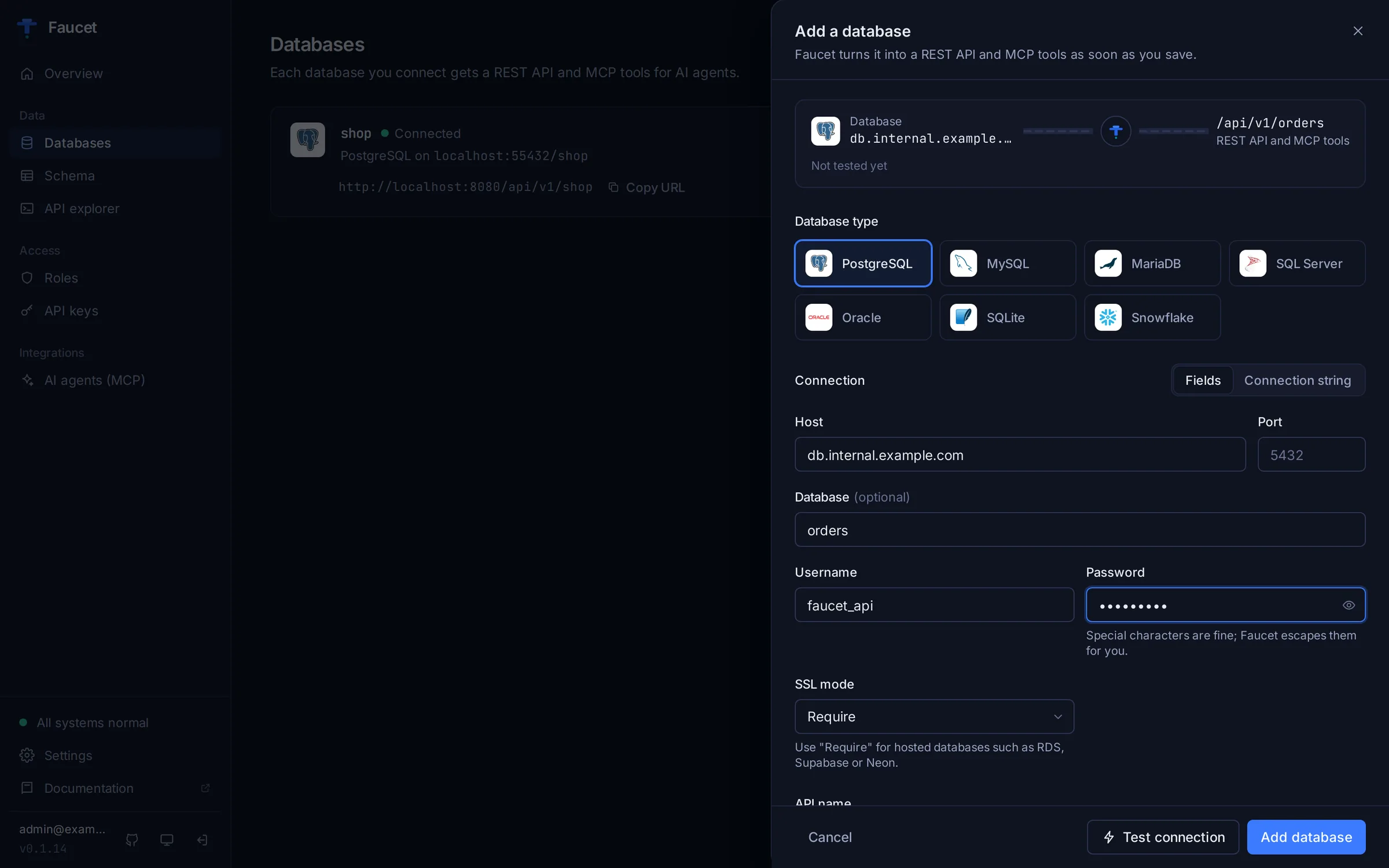
Pick the database type. Faucet supports PostgreSQL, MySQL, MariaDB, SQL Server, Oracle, SQLite and Snowflake. MariaDB uses Faucet's MySQL driver and is listed as MySQL once saved.
Fill in the connection. Enter the same details you'd give any database client. Faucet builds and escapes the connection string for you, so passwords with @, #, / or % need no special handling.
| Database | Fields |
|---|---|
| PostgreSQL | Host, port (default 5432), database, username, password, SSL mode |
| MySQL, MariaDB | Host, port (3306), database, username, password, TLS |
| SQL Server | Host, port (1433), database, username, password, encryption, Trust server certificate |
| Oracle | Host, port (1521), service name, username, password, TLS |
| Snowflake | Account identifier, username, password or key pair (path to a .p8 file), database, schema, warehouse, role |
| SQLite | File path |
Things worth knowing:
- Port can stay empty to use the standard port shown in the placeholder.
- SSL / TLS: hosted databases such as Amazon RDS, Supabase, Neon, PlanetScale and Azure SQL usually need Require, Required or On.
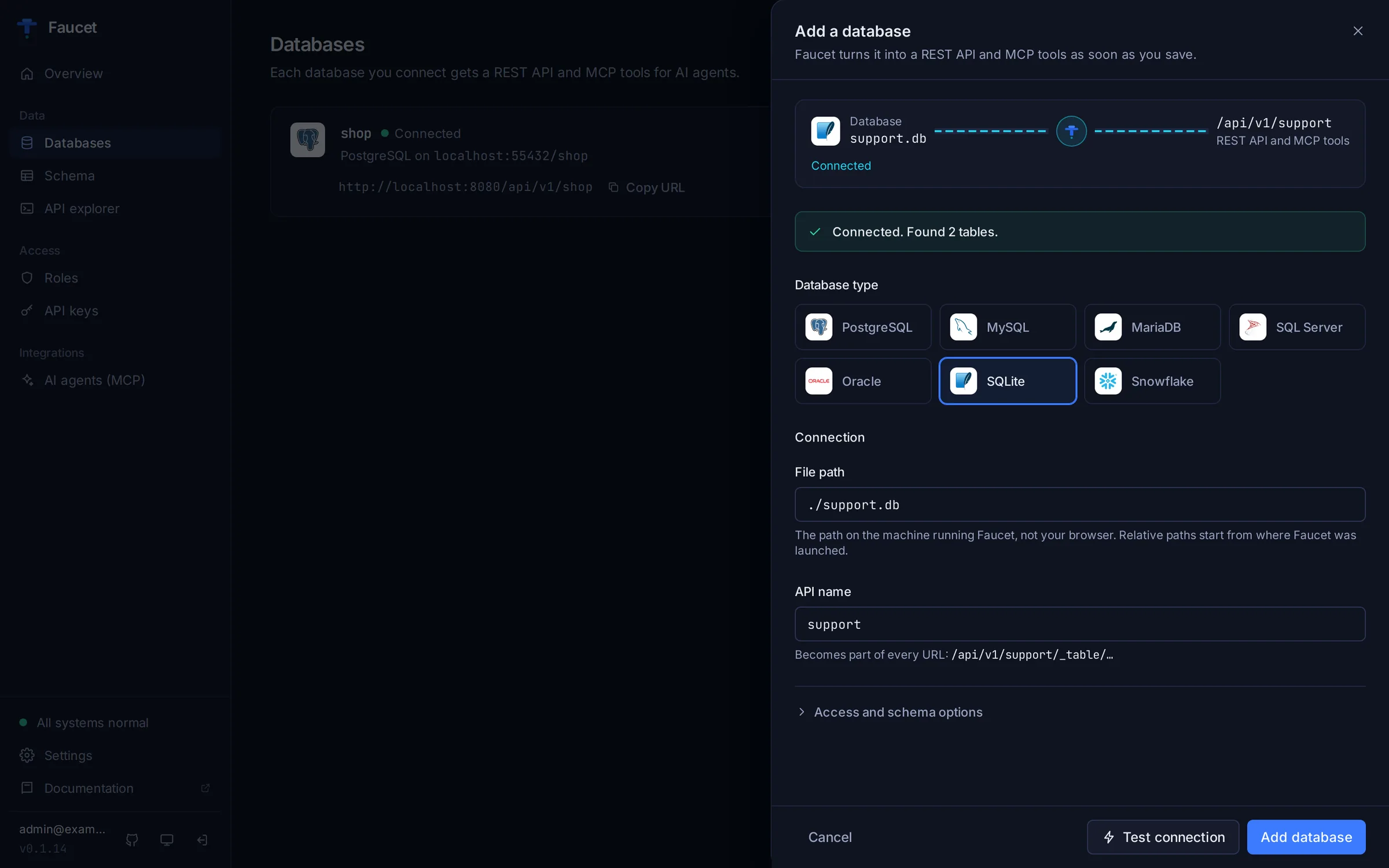
- SQLite and Snowflake key files are read on the machine running Faucet, not on your computer. A relative SQLite path starts from the directory Faucet was launched in.
- Faucet in Docker:
localhostmeans the Faucet container itself. To reach a database on your machine, usehost.docker.internalor the host's IP address.
Check the API name. Faucet fills it in from the database name (or the SQLite file name). It becomes part of every URL, for example /api/v1/shop/_table/orders, and it can't be changed later. Use letters, numbers, dashes and underscores.
Test, then save. Test connection connects with your settings without saving anything. On success, the line at the top of the panel lights up from your database to its API, and Faucet tells you how many tables it found.
When the test fails, Faucet shows the database's error together with a plain-language hint. The hints cover connection refused, unknown host, timeouts, wrong username or password, a missing database or Oracle service name, TLS mismatches, and SQLite files that can't be opened.
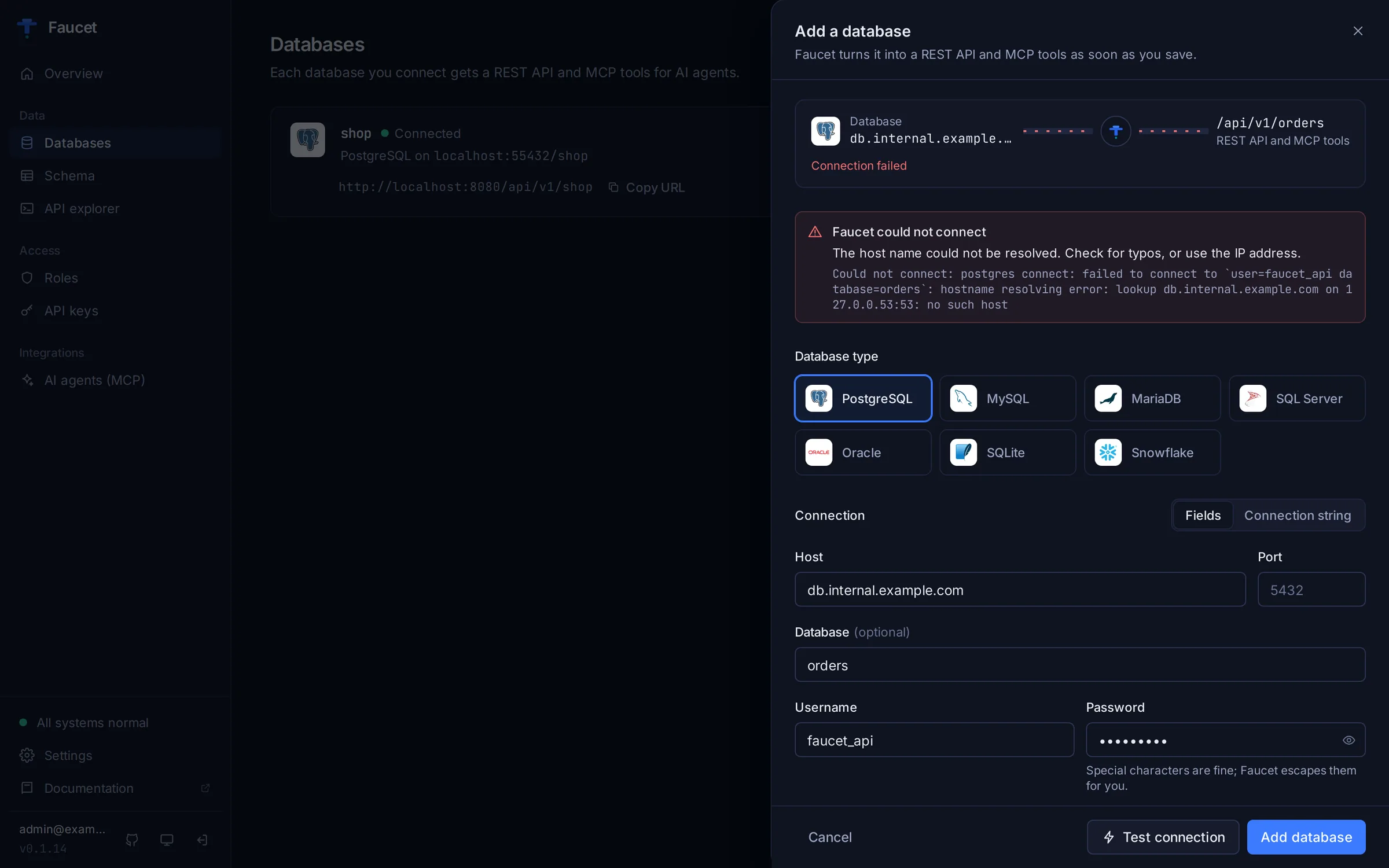
Add database runs the test for you if the current settings haven't passed one yet. If the test fails, the button changes to Save anyway, for databases that aren't reachable yet but will be.
Using a connection string
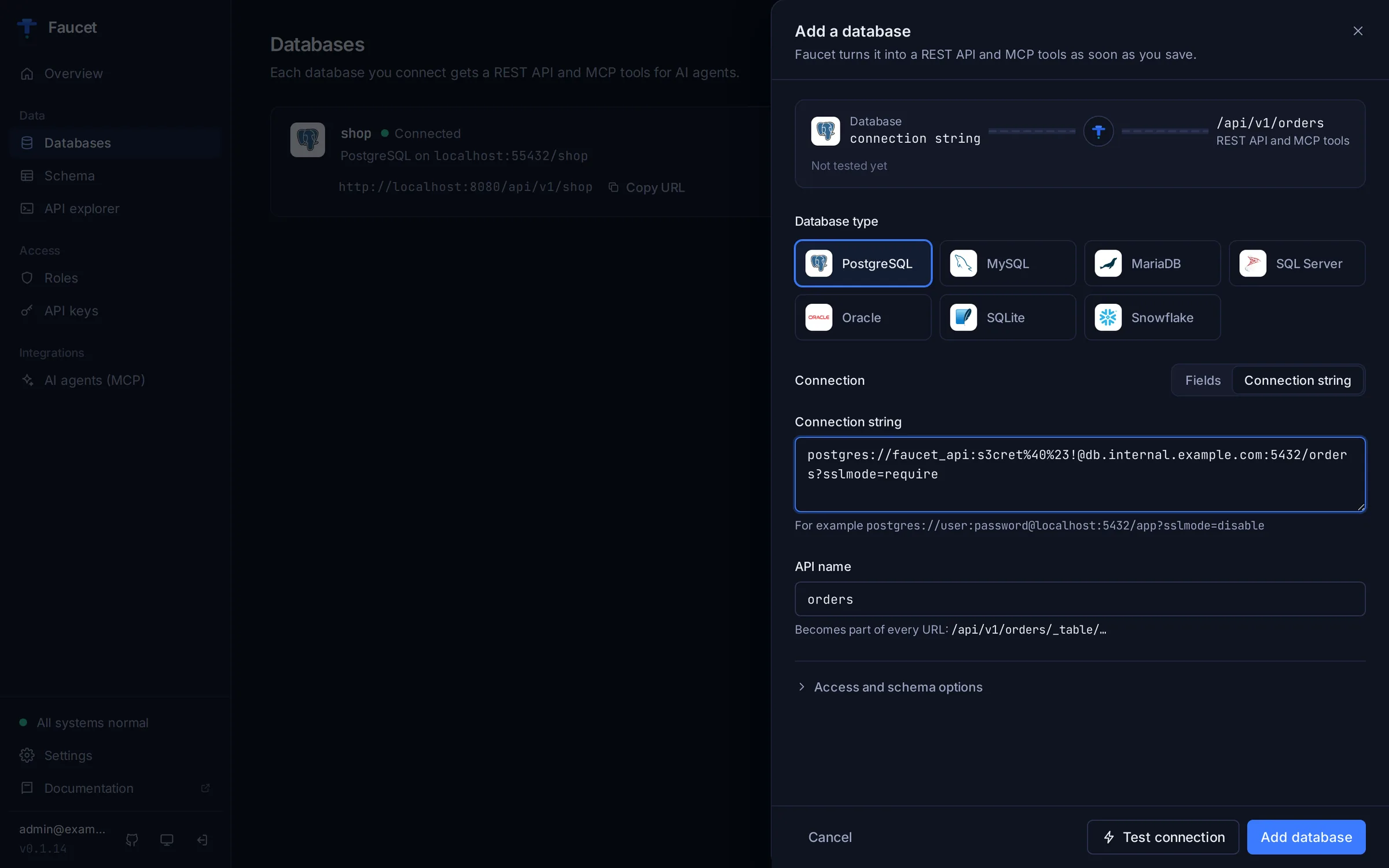
Already have a DSN? Switch Fields to Connection string and paste it. If you paste a full URL into the Host field, Faucet switches to this mode for you. The formats for each database are in Database Connectors.
Edit a database
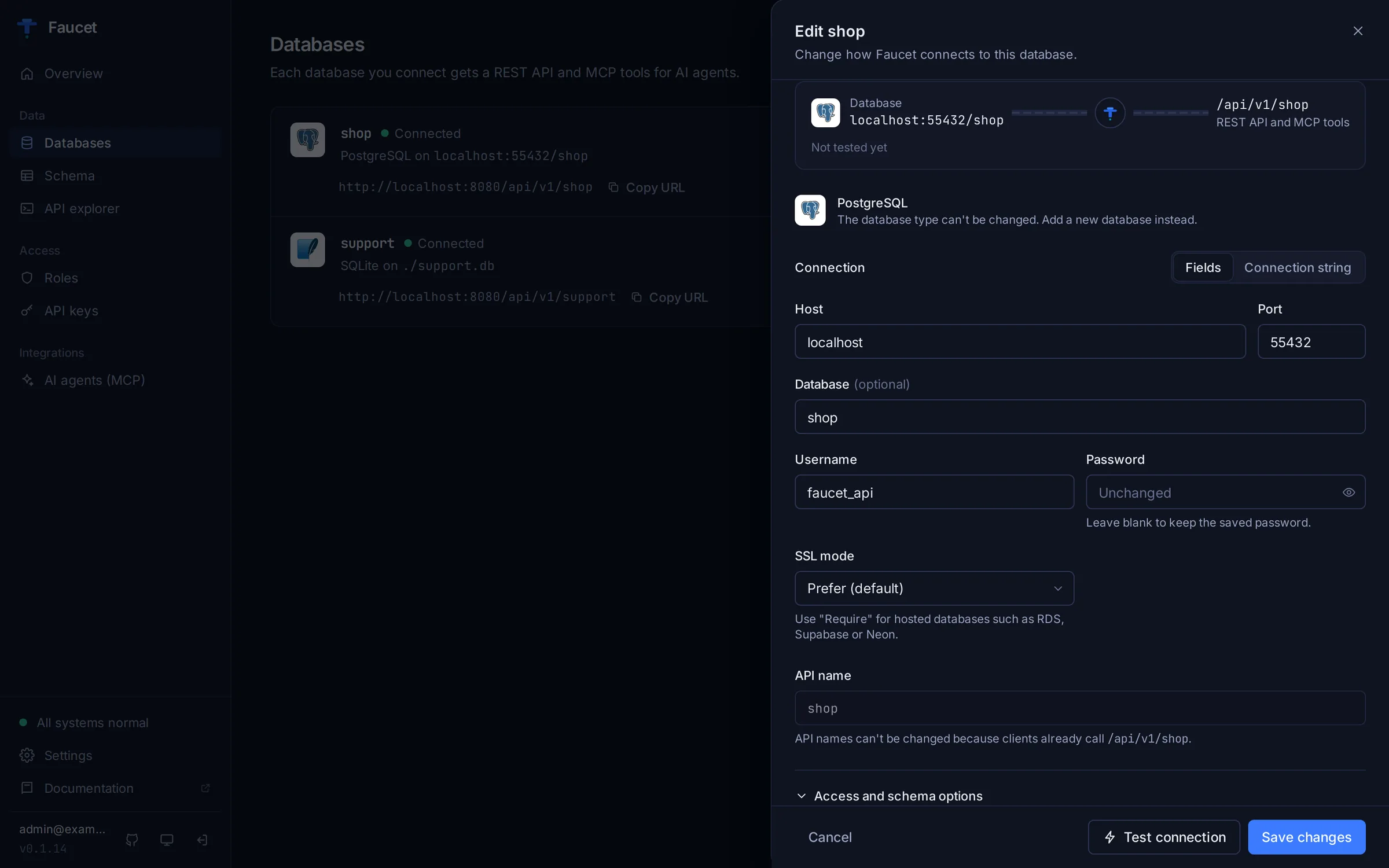
Edit opens the same panel, filled in with the saved settings. The password is never shown. Leave it blank to keep the saved one, or type a new one to replace it. You can't change the database type or the API name; add a new database instead.
Faucet resends the connection details only if you changed them, and it reconnects the database as soon as you save.
Access and schema options holds three settings:
- Read-only blocks inserts, updates and deletes through both the REST API and MCP, whatever a key's role allows.
- Allow raw SQL for AI agents lets MCP clients run any SQL through the
faucet_raw_sqltool. Leave it off unless you trust every key holder. - Schema chooses which schema to expose (for example
publicin PostgreSQL ordboin SQL Server). For Oracle, set it to the table owner to expose another user's tables.
Schema
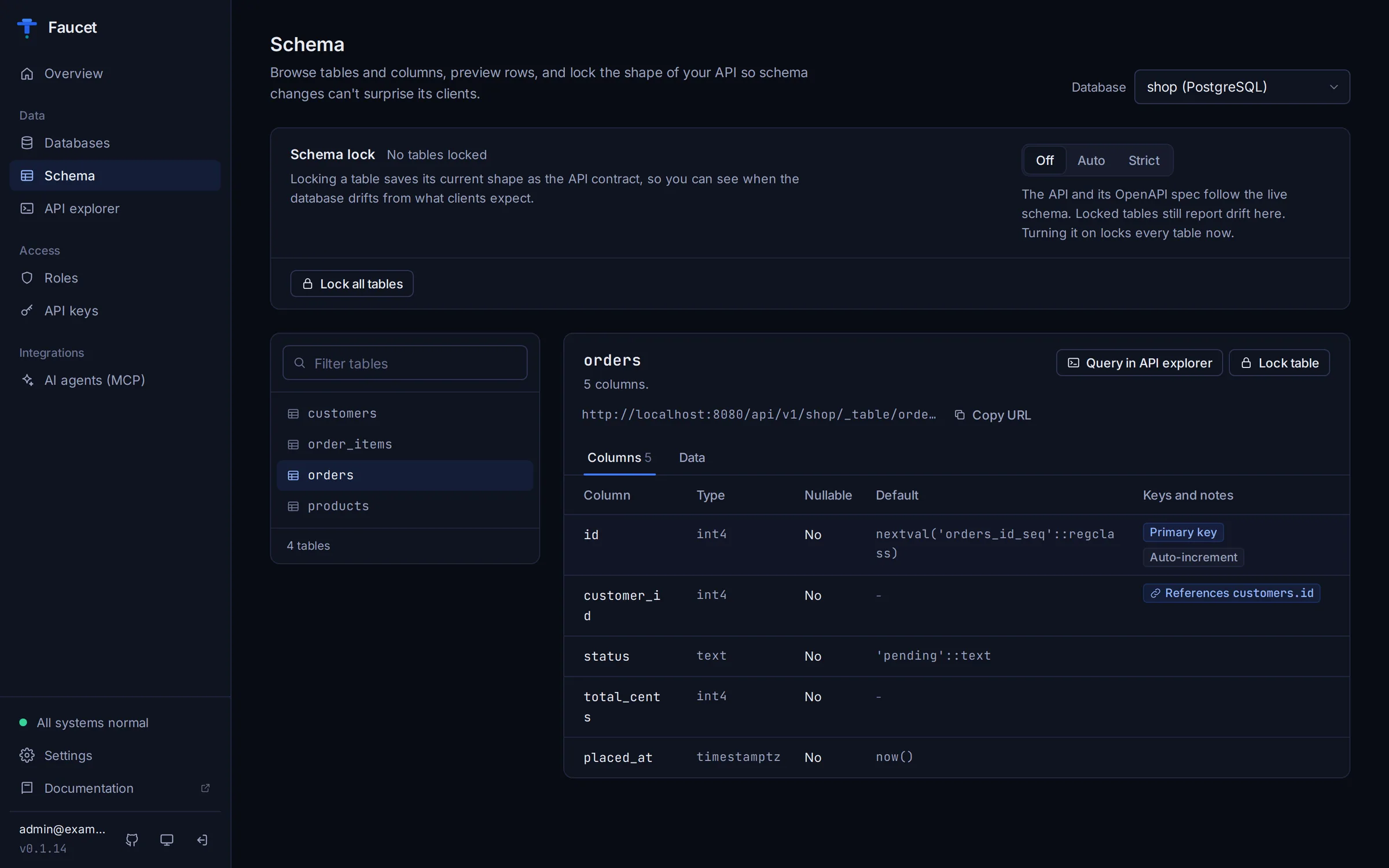
Schema shows the tables of one database. Pick the database at the top right, filter the table list on the left, and select a table.
- Columns lists each column's type, whether it's nullable, its default, and its keys. Primary key, Auto-increment and Unique appear as tags. Foreign keys are links: References customers.id jumps to that table.
- Data shows the first 25 rows, with Load 25 more. Click a column header to sort.
- Each table has its endpoint URL with Copy URL, plus Query in API explorer to open the table in the API explorer.
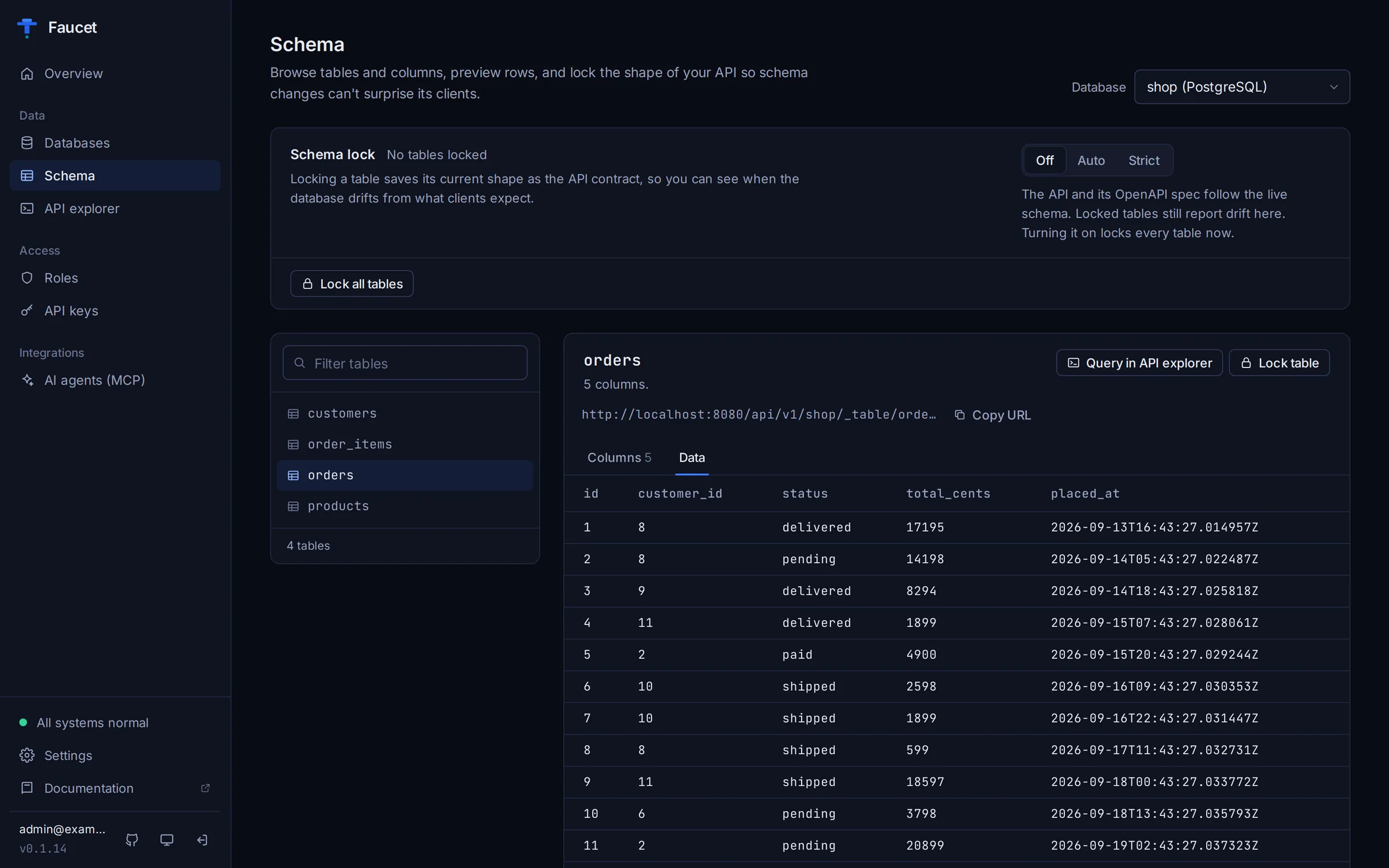
Schema lock
Schema lock protects your API's clients from database changes that would break them. Locking a table saves its current shape as the API contract, and Faucet compares the live table against that contract.
The mode switch at the top of the page sets how strict Faucet is:
| Mode | What happens |
|---|---|
| Off | The API follows the live schema. Locked tables still report drift. |
| Auto | New columns are fine. Drops, renames and type changes are blocked until you promote them. |
| Strict | Every change is blocked until you promote it. |
Switching to Auto or Strict when nothing is locked yet locks every table. You can also lock or unlock tables one at a time, or use Lock all tables and Unlock all.
When a locked table drifts, the table list shows a dot and the table explains each change, marked Breaking or Additive. Promote changes accepts the live shape as the new contract.
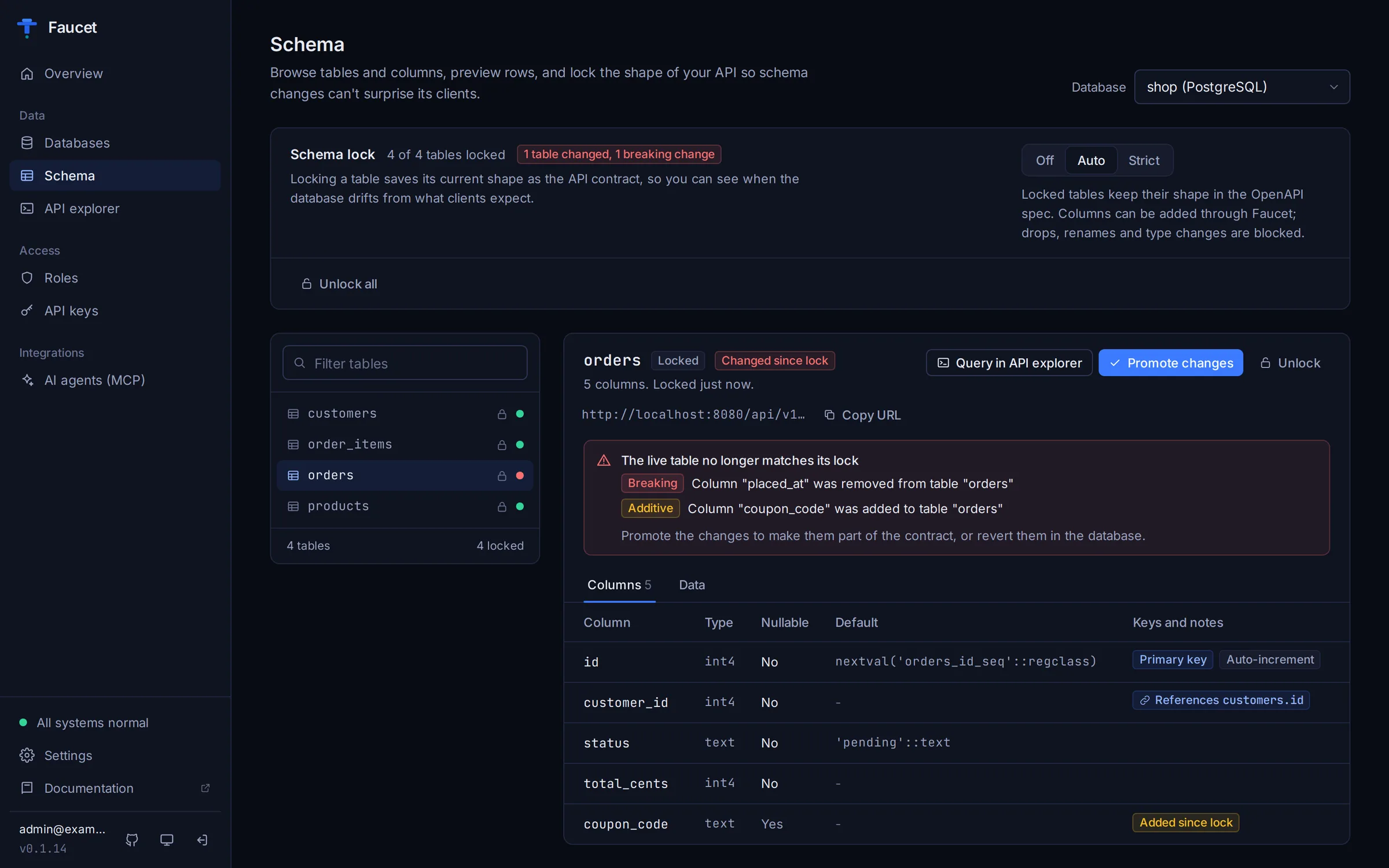
See Schema Locking for the full model, including the CLI and API.
API explorer
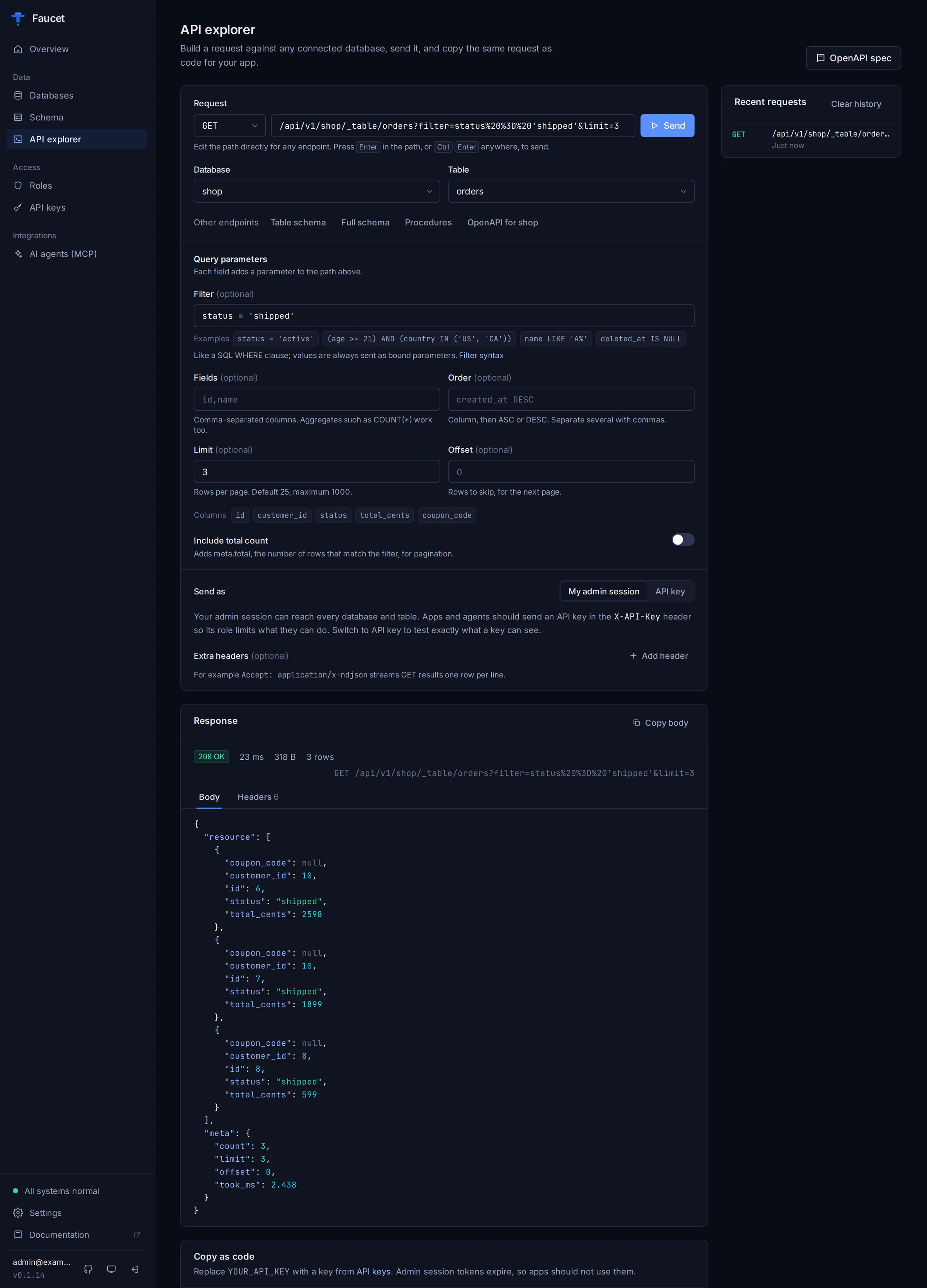
The API explorer builds and sends REST requests from the browser.
- Pick a method, a database and a table. The path is built for you, and you can still edit it to reach any other endpoint (Table schema, Full schema, Procedures and OpenAPI are one click away).
- Fill in query parameters: Filter (examples included; see Filter Syntax), Fields, Order, Limit, Offset and Include total count. The table's columns are listed for reference.
- For POST, PUT and PATCH, edit the JSON body. It starts from an example built from the table's real columns.
- Choose Send as:
- My admin session can reach everything.
- API key lets you paste a key and see exactly what that key's role allows. The key is held only in the page and never saved.
- Click Send, or press Ctrl+Enter (Cmd+Enter on Mac).
The response shows the status, timing, size and row count, with the body and headers in separate tabs. Copy as code gives the same request as curl, JavaScript or Python, with an X-API-Key header ready for your key. Recent requests keeps the method and path of your last 10 requests, never keys or bodies.
Roles
A role decides which databases and tables an API key can use, and what it can do there. A key without a matching rule is refused.
With no roles yet, Faucet offers two one-click starting points, Read-only on everything and Full access to everything, or Create custom role.
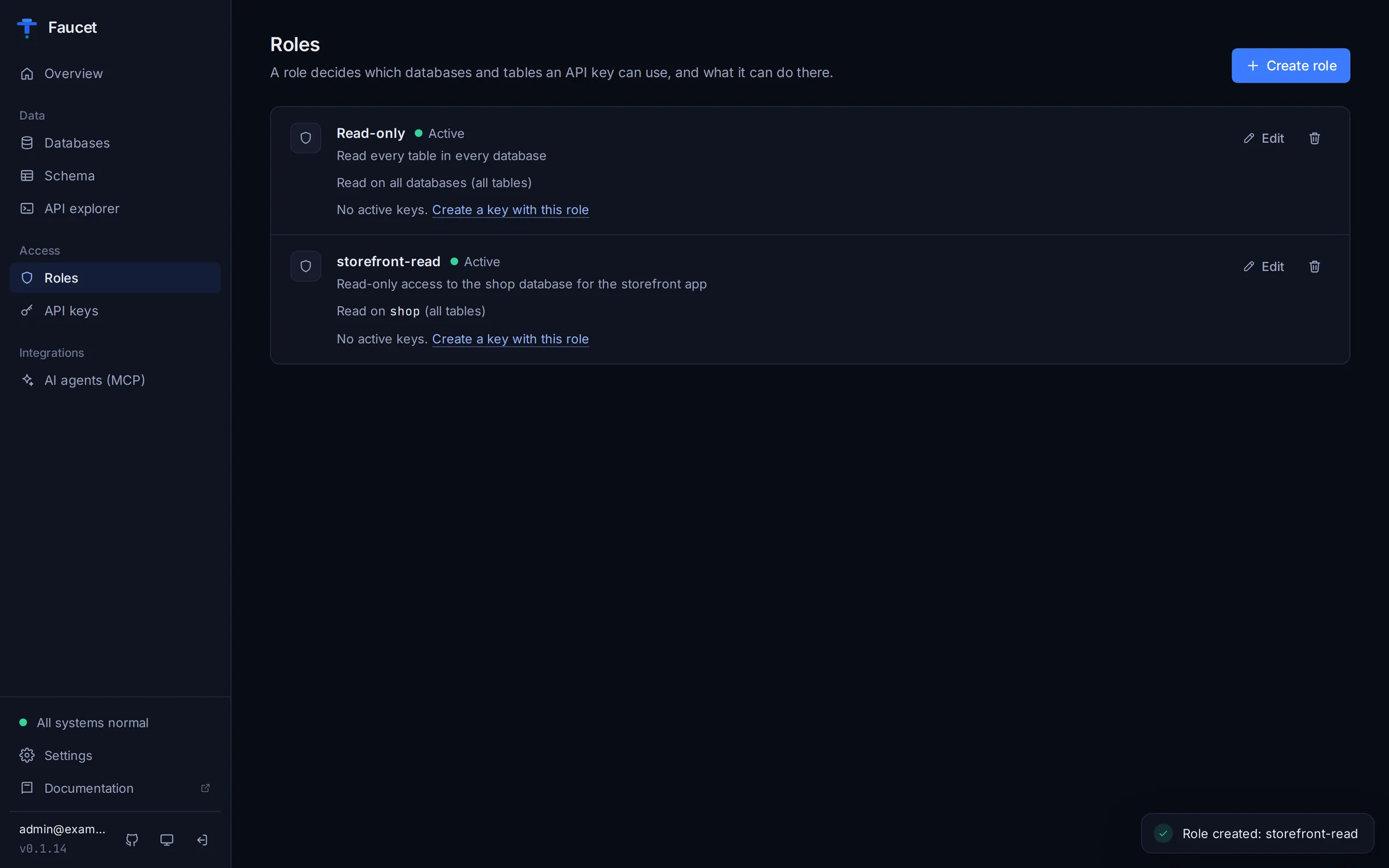
The role editor has a name, an optional description, an Active switch (turning it off refuses every key with this role), and one or more access rules. Each rule has three parts:
- Database: one database, All databases, or a name pattern such as
prod_*. - Tables: leave empty for all tables, or type a table name. Suggestions come from the database.
- Access:
- Read only: read rows and schemas.
- Read and write: also create, replace and update rows.
- Full: also delete.
- Custom: pick the individual operations.
What this role allows sums up the rules in plain words as you edit. A request is allowed when any rule covers it.
With Tables left empty, a rule also covers schema changes: Read and write can create and alter tables, and Full can drop them. To limit a rule to rows, enter _table/* (or _table/orders, _table/prod_*). Name patterns such as prod_* work in the Database field; in Tables, write them as _table/prod_*.
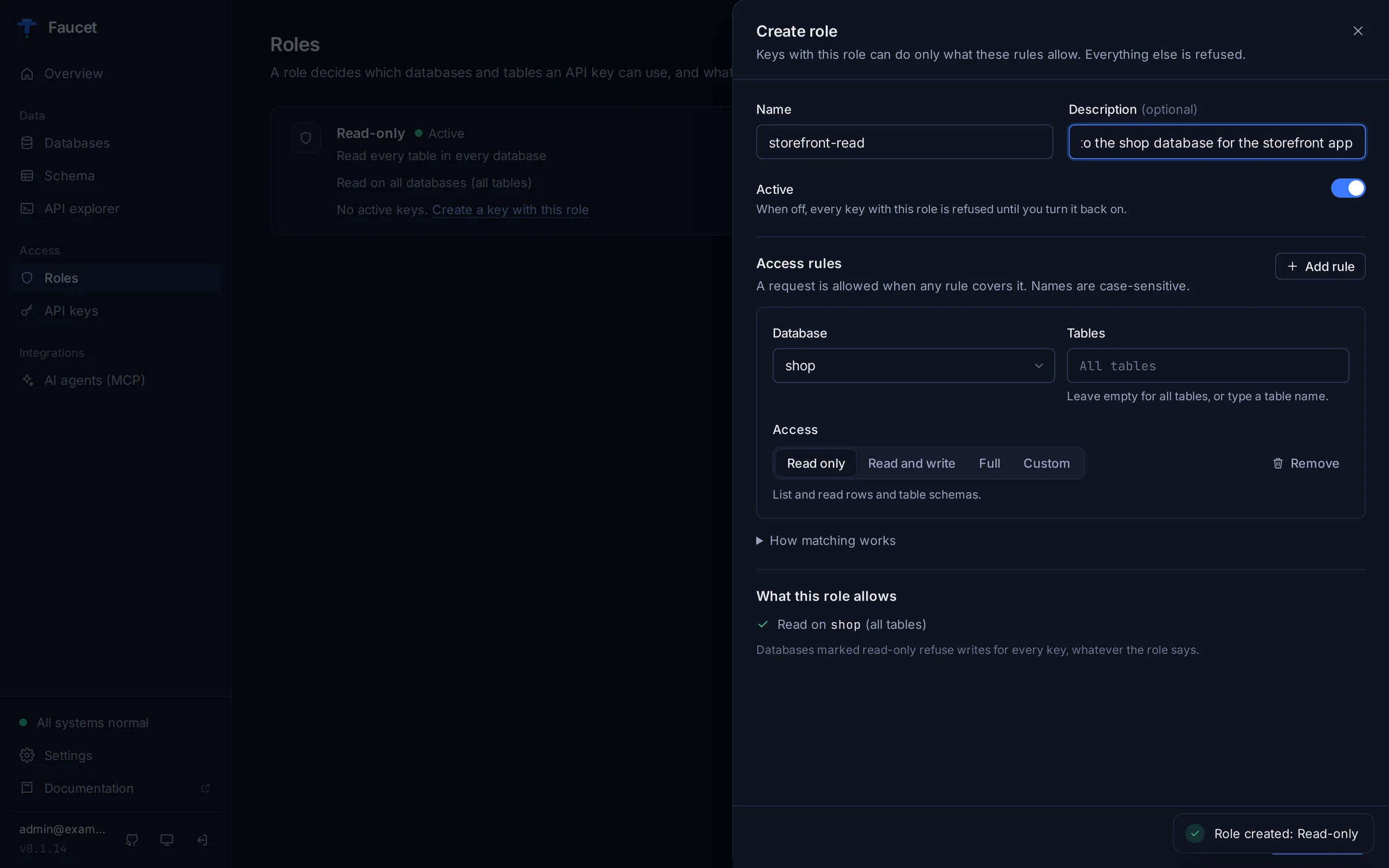
Read-only databases refuse writes whatever the role says. The rules are explained in depth in RBAC.
API keys
API keys are how apps and AI agents authenticate. They send the key in the X-API-Key header. Every key has a role, and Faucet stores only a hash of it.
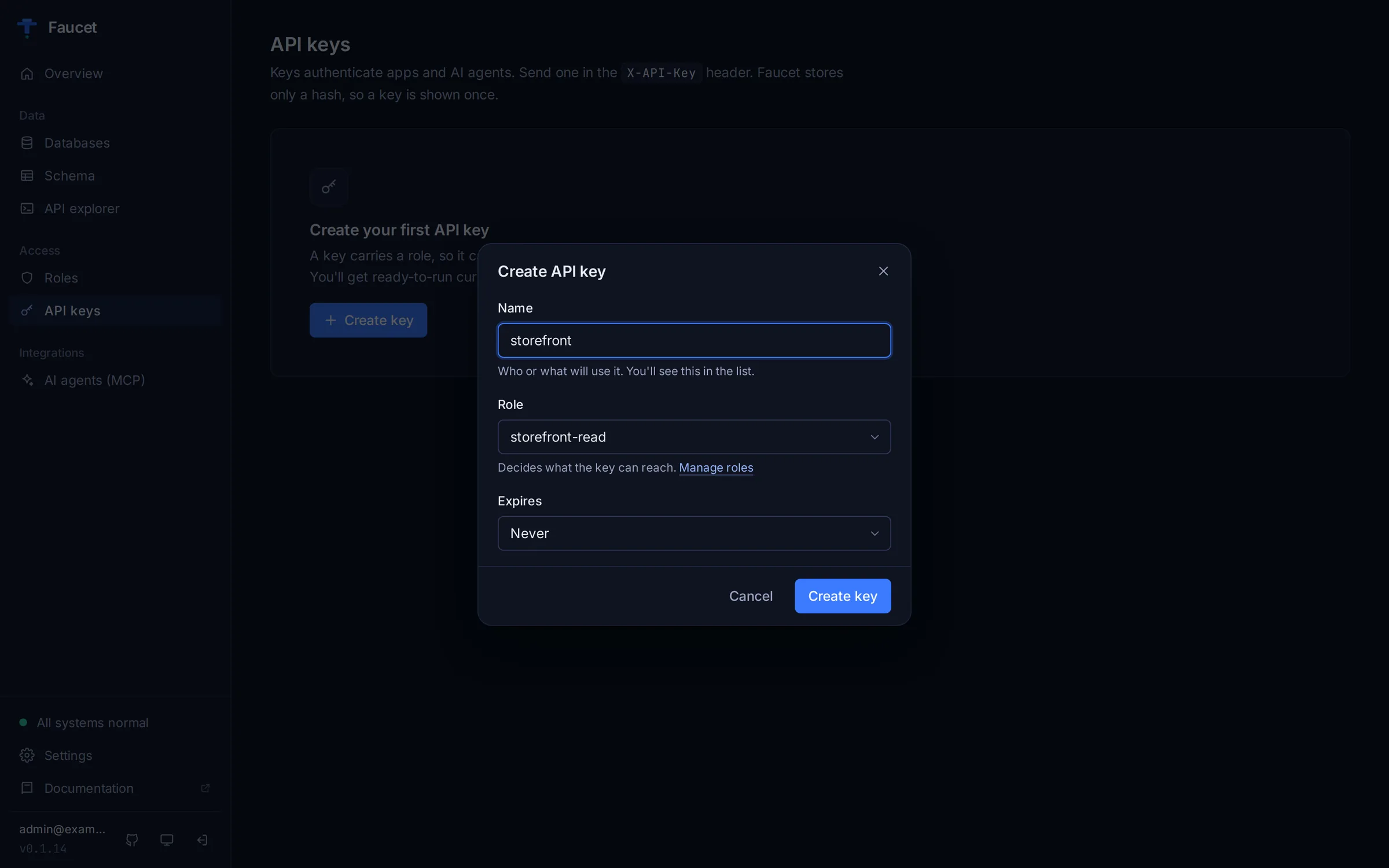
Click Create key, then give the key a name, pick a role, and choose when it expires: never, or in 7 days, 30 days, 90 days or 1 year.
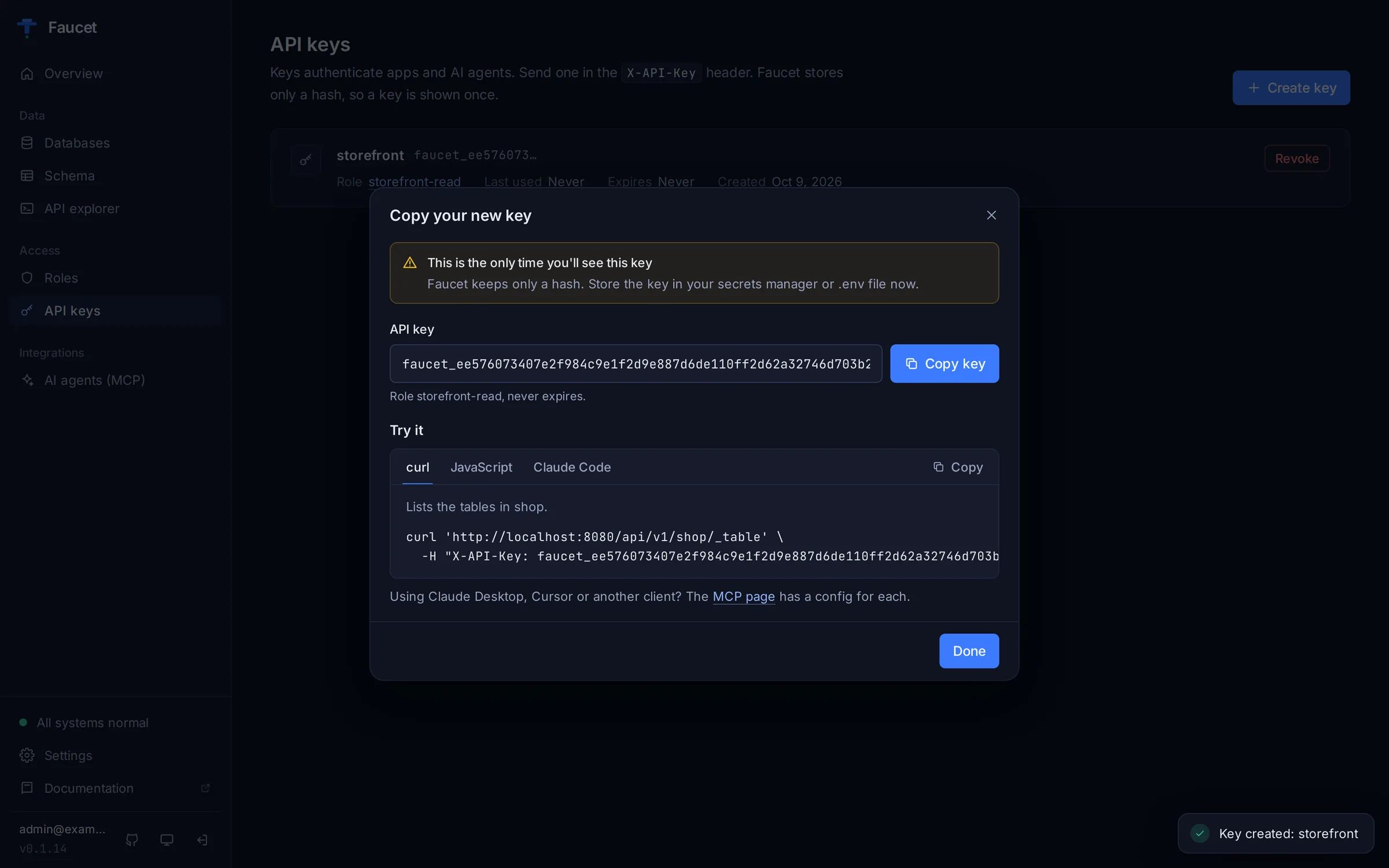
Faucet shows the full key once. Copy it into your secrets manager or .env file before closing the dialog. The dialog also gives you ready-to-run snippets that already contain the key: a curl request, a JavaScript fetch, and the Claude Code command to connect Faucet as an MCP server.
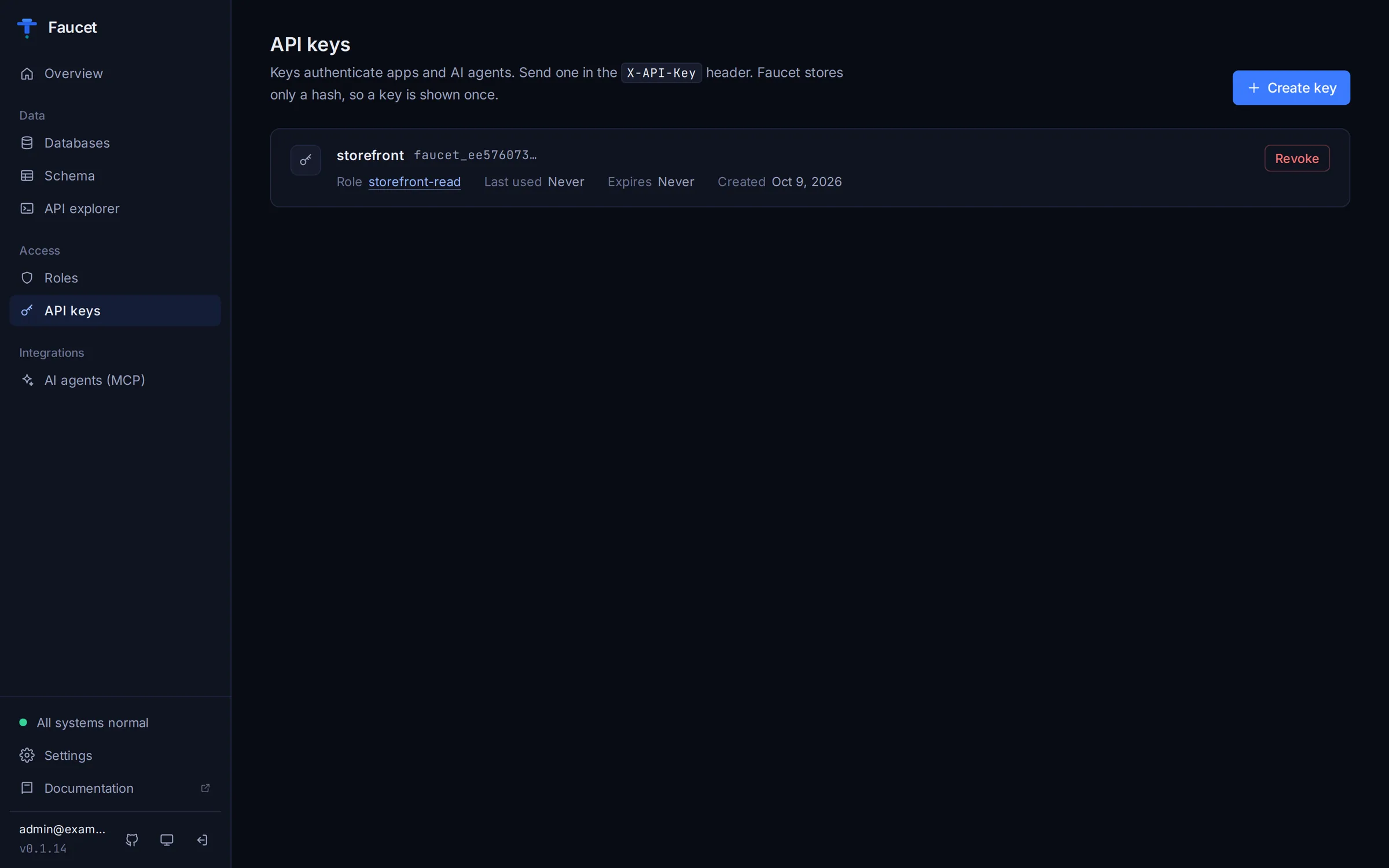
The key list shows each key's role, when it was last used, and when it expires. Revoke turns a key off immediately.
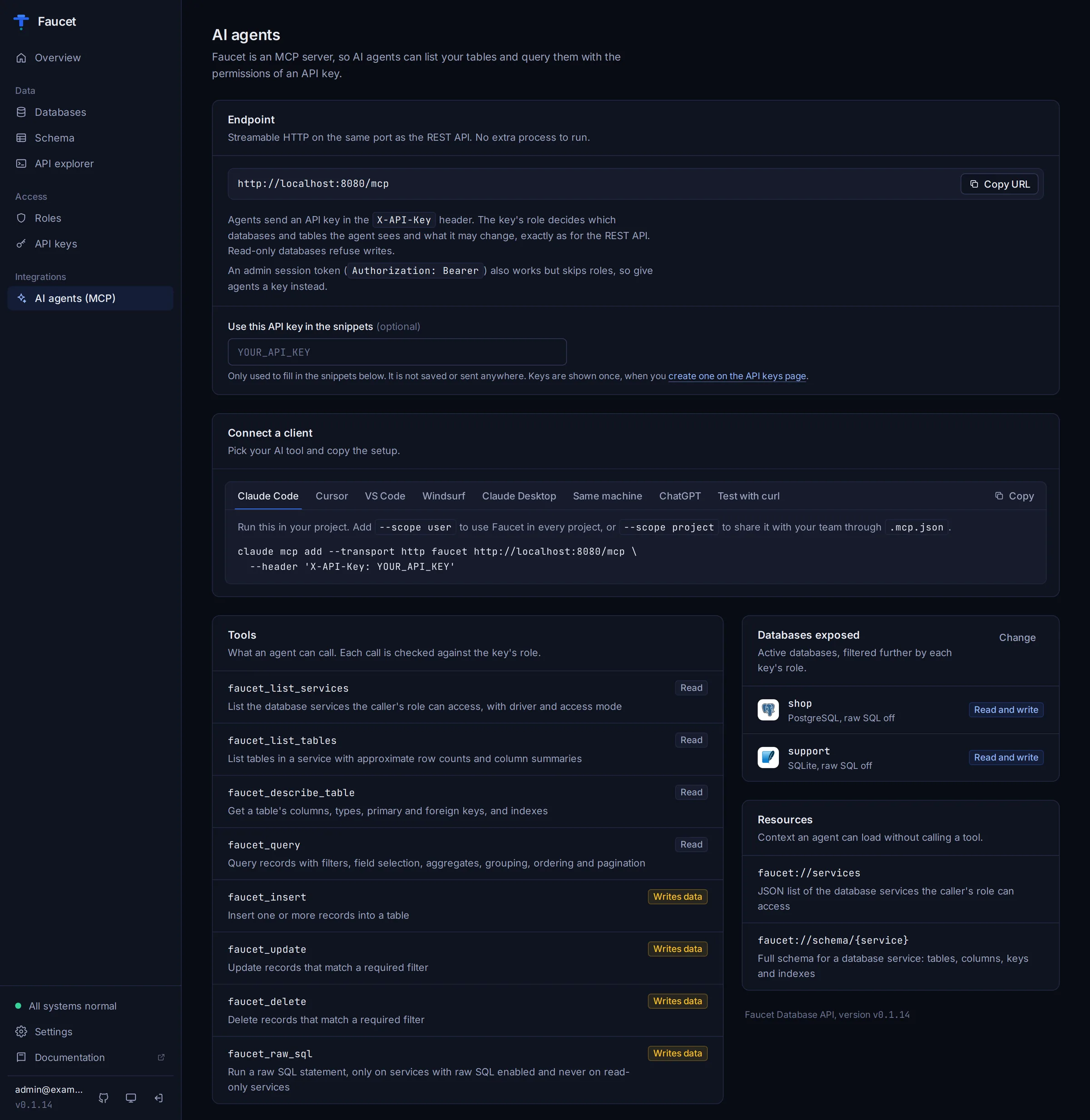
AI agents (MCP)
Faucet is also a Model Context Protocol server, so AI agents can list your tables and query them. Agents connect to the MCP endpoint, http://localhost:8080/mcp, on the same port as the REST API. They authenticate with an API key, and the key's role limits what they see and change, exactly as for the REST API.
The AI agents page has:
- Endpoint: the MCP URL to copy.
- Use this API key in the snippets: paste a key to fill it into every config below. It is not saved.
- Connect a client: a ready-made setup, with the location of each config file, for these clients:
- Claude Code
- Cursor
- VS Code
- Windsurf
- Claude Desktop (through
mcp-remote) - A Faucet binary on the same machine (
faucet mcpover stdio) - ChatGPT
- A curl handshake to test the endpoint
- Tools and resources: what an agent can call. Each tool is marked Read or Writes data.
- Databases exposed: each database with its access mode and whether raw SQL is on.
ChatGPT
ChatGPT's connectors require OAuth, which Faucet doesn't offer yet. The page explains the two routes that work today:
- A Custom GPT Action that imports
/openapi.jsonand authenticates with your API key. - The OpenAI Responses API's MCP tool.
Both need Faucet to be reachable from the internet.
More detail is in MCP Server.
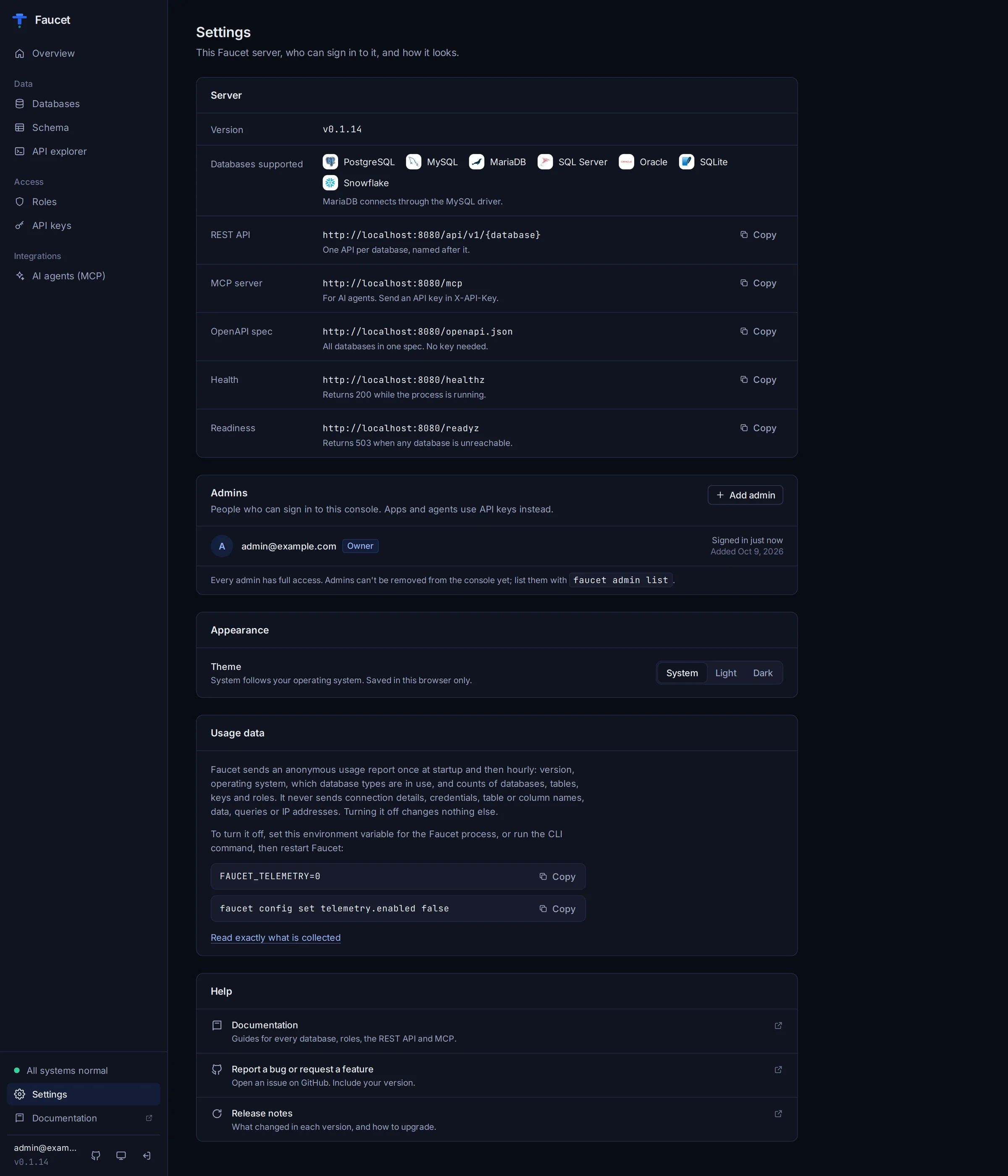
Settings
- Server: the Faucet version, the supported databases, and copyable URLs for the REST API, MCP, OpenAPI spec,
/healthzand/readyz. - Admins: everyone who can sign in to the console. Add admin creates another account. Every admin has full access, and admins can't be removed from the console yet.
- Appearance: a theme setting of System, Light or Dark. The sun and moon button in the sidebar cycles through the same choices.
- Usage data: what Faucet's anonymous usage report contains, and how to turn it off with
FAUCET_TELEMETRY=0. - Help: links to these docs, GitHub issues and the release notes.
Light theme and mobile
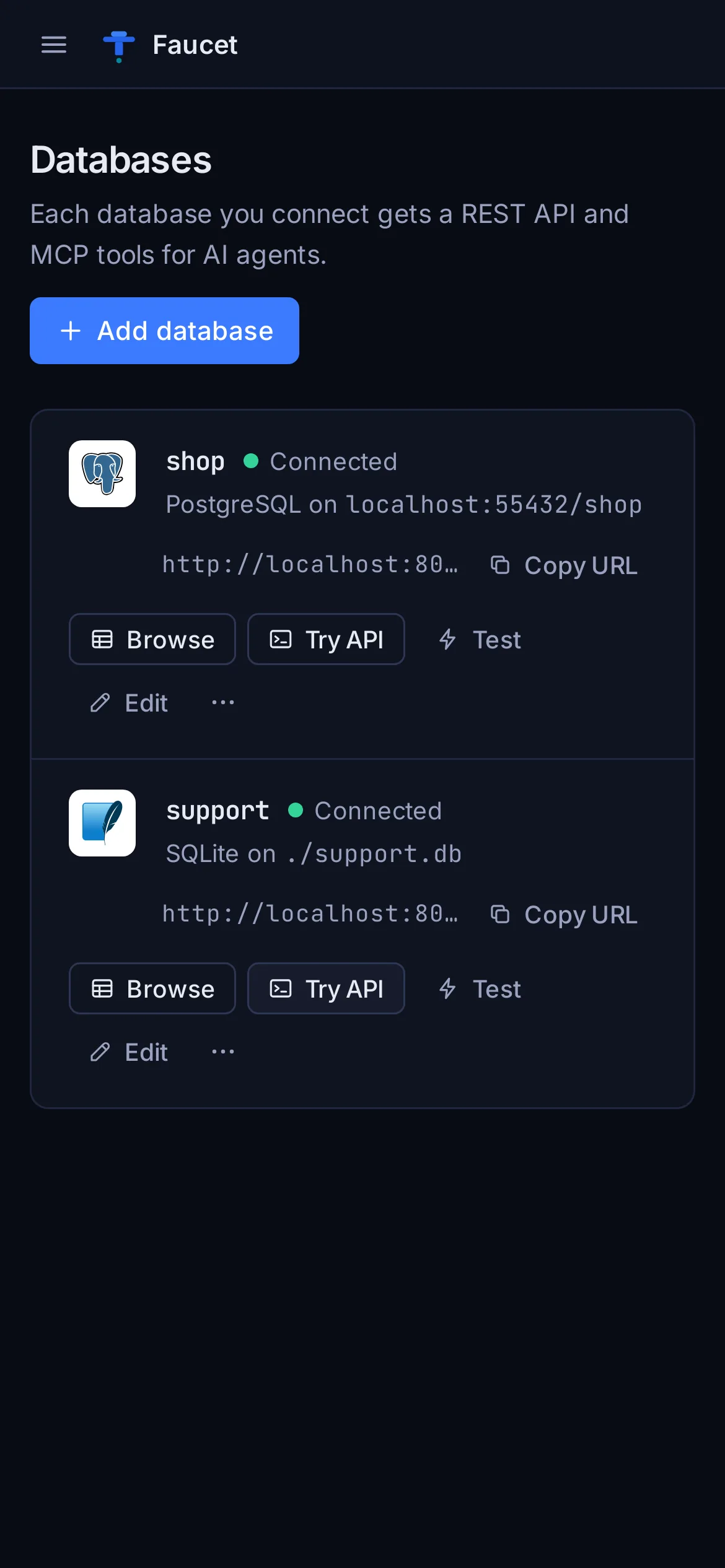
The console follows your system's light or dark preference unless you choose one, and it works on phones and tablets.
Troubleshooting
The page is blank or says the UI is not available. The binary was built without the UI. Release binaries, Docker images and the npm package include it. When building from source, run cd ui && npm ci && npm run build before make build.
"Faucet is not reachable." The browser lost contact with the server. Check that it is still running with faucet status.
Signed out unexpectedly. Admin sessions expire after a while. Sign in again.
A database I added with faucet db add doesn't appear as connected. A running server loads CLI-added databases on its next start. Restart with faucet stop && faucet serve, or click Test on the database row, which connects it right away.
Locked out. Create another admin on the server with faucet admin create --email [email protected].